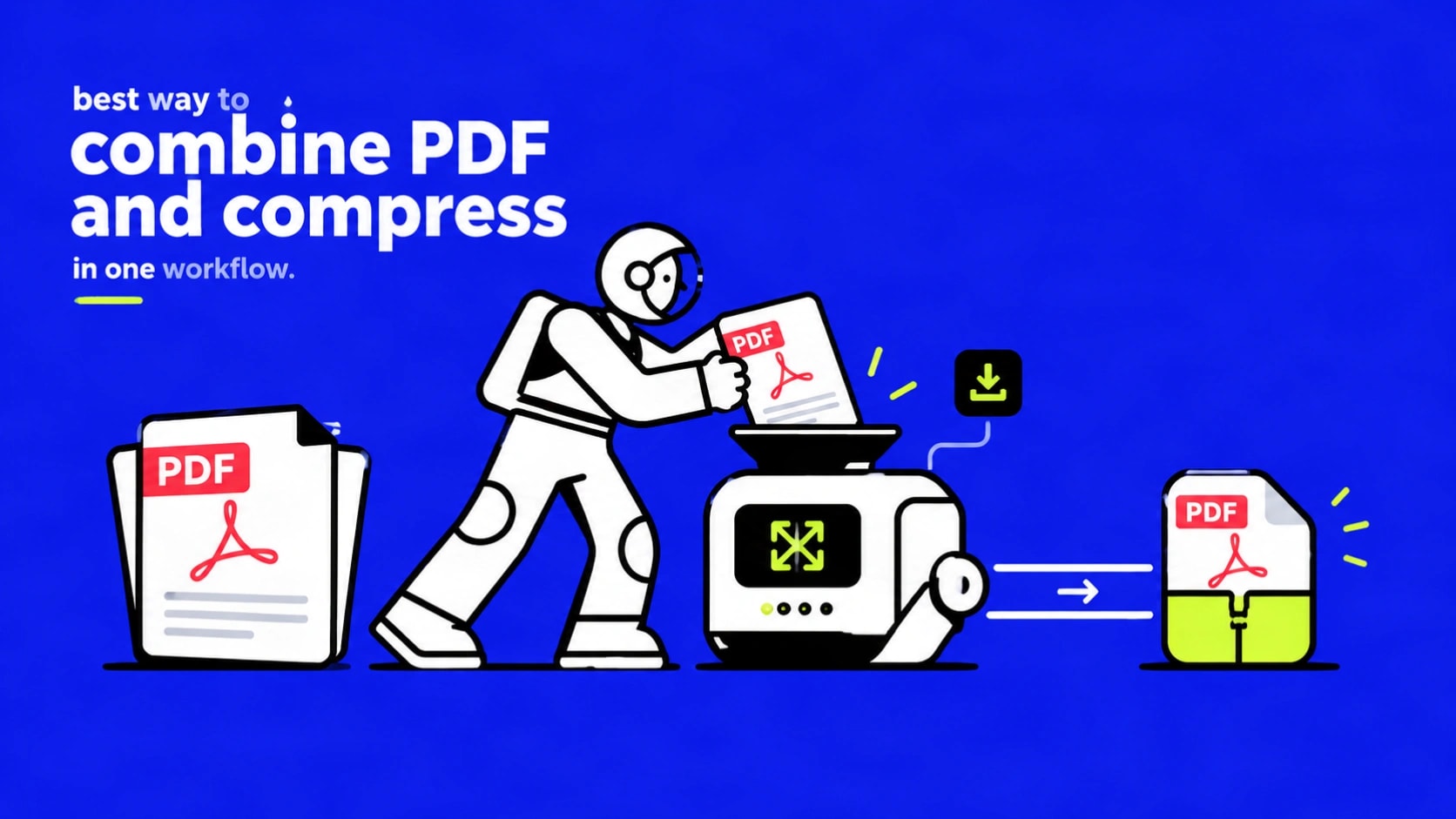
The Practical Way to Combine PDFs and Compress Them in One Clean Workflow
You have several PDF files that need to become one smaller document. Email rejects the attachment. An upload portal has a size limit. Sharing feels slow. The solution is not two separate tools used at random. It is a deliberate sequence: merge first, then compress once.
This guide shows the exact order that protects quality and delivers the smallest usable file. Everything runs in your browser on PDF Convex. No account, no software, no watermarks.
Why the Order Matters
Merging is a structural operation. It places the pages of each PDF into a new container in the order you choose. Text stays text. Images stay at their original resolution. Fonts and layout remain unchanged. The file size of the merged result is roughly the sum of the source files plus a small overhead.
Compression is different. It looks for oversized images, unused font data, and redundant metadata and reduces them. When you compress after the merge, the tool sees the complete document and can optimize the whole package efficiently. Compressing each file first, then merging, often produces larger final files and can introduce repeated quality loss if you compress again later.
For scanned or image-heavy documents the difference is especially clear. One careful compression pass at the end usually gives better size reduction with less visible softening than repeated passes.
Step-by-Step Workflow: Merge Then Compress
What Results to Expect
Text-based PDFs created from Word or similar programs usually shrink noticeably because unused font data and metadata are easy to remove. Scanned PDFs or files full of high-resolution photos shrink mainly by reducing image resolution. A file that was already compressed or carefully optimized may show only modest further reduction. That is normal.
Typical practical targets after a good merge-and-compress pass include files under 10 MB for most email systems and under 5 MB or even 2 MB for many application portals. Exact numbers depend on the content of your documents.
| Document Type | Typical Behavior After Merge + Compress |
|---|---|
| Mostly text (reports, contracts) | Strong size reduction, text remains crisp |
| Scanned pages or photos | Size drops mainly from image downsampling; quality trade-off is visible if pushed hard |
| Already optimized PDFs | Limited further reduction; file may already be efficient |
Common Problems and Clear Fixes
The merged file is still too large after compression. The original scans or images were captured at very high resolution. Consider extracting the images, reducing them separately, rebuilding the PDF, then compressing once. Alternatively split the document, compress sections, and re-merge if a portal has a hard limit.
Text looks soft or blurry. The compression setting was too aggressive for image-heavy pages. Return to the merged file and use a lighter setting if available, or accept a slightly larger file for better readability.
Upload fails or the tool does not respond. Check whether any source file is password-protected. Unlock it first with the Unlock PDF tool, then merge and compress. Also try a different browser or a smaller batch of files.
Download does not appear. Wait for the progress indicator to finish. On mobile, check the downloads folder or the browser’s download manager. Processing time grows with file size and connection speed.
Related Tools That Fit the Same Workflow
If a file is locked, use Unlock PDF before merging. If the final document is still oversized, Split PDF lets you work on sections. For scanned pages that need searchable text, run OCR PDF after compression when the file size is manageable. All of these tools follow the same free, no-account, browser-based pattern.
Frequently Asked Questions
Should I compress each PDF before merging?
No. Merge first so the compression step sees the complete document. Compressing early can force extra quality loss later.
Will merging change the quality of my pages?
No. The merge step assembles existing page containers without re-rendering or recompressing content.
How much smaller will the file become?
It depends on the content. Text-heavy files often drop substantially. Image-heavy scans drop mainly through image optimization. Already optimized files may shrink only a little.
Can I do this on my phone?
Yes. Both tools work in modern mobile browsers. The interface adapts to touch, though a larger screen makes reordering easier for many files.
Is the process private?
Files travel over encrypted connections. Uploaded and processed files are automatically deleted after processing. No account is required.
Final Notes
The most reliable way to combine PDFs and reduce their size is straightforward: create one clean merged file, then compress that file once. The sequence protects quality, avoids unnecessary processing, and produces a document ready for email or upload limits. PDF Convex provides both steps free in the browser with no sign-up and automatic file cleanup.
Open the Merge PDF tool, build your single document, then compress it. The result is one smaller, usable PDF that does exactly what you need.