
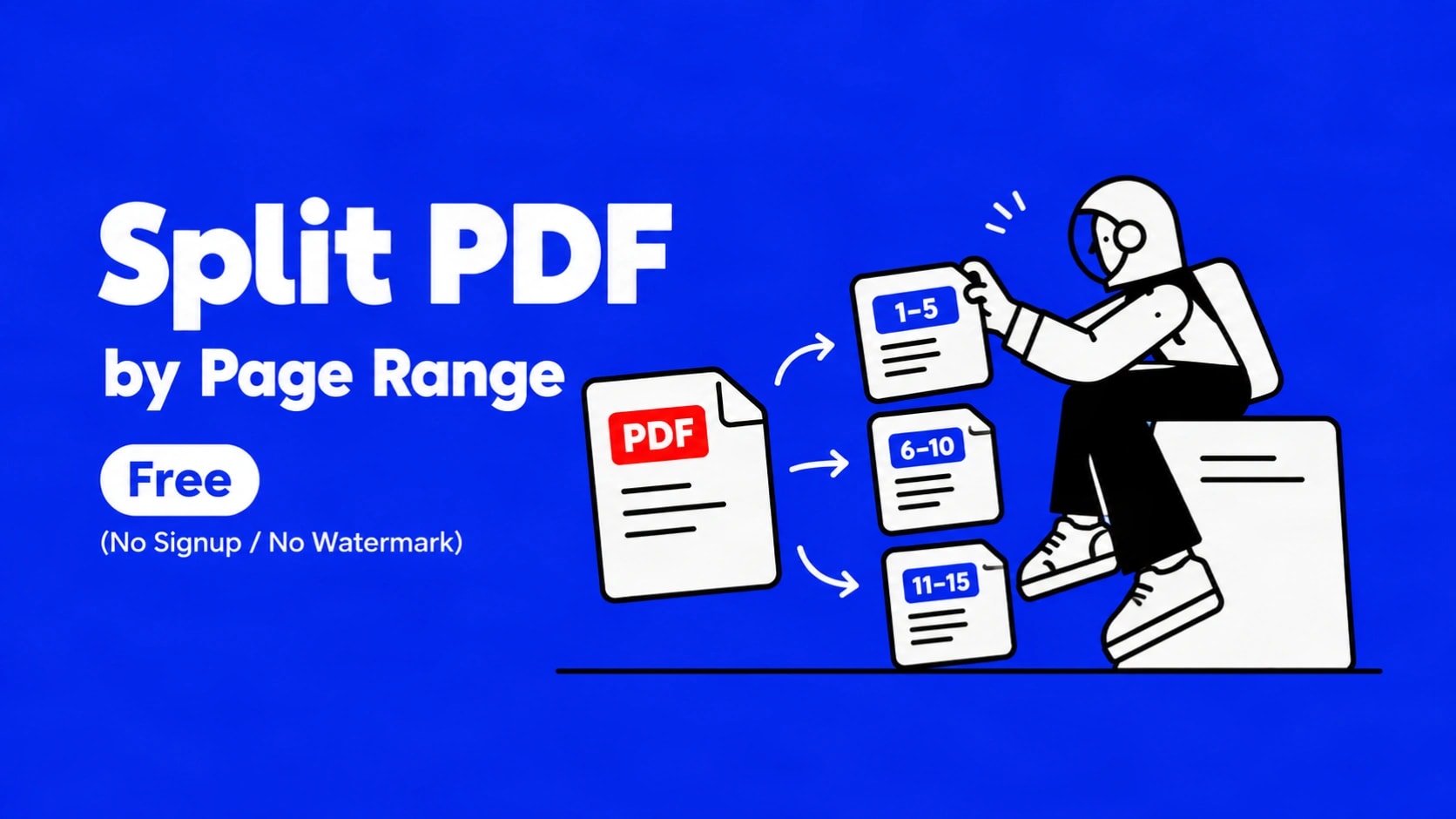
Split a PDF by Exact Page Range Without Installing Anything
You have a long PDF and only need pages 12 to 27, or page 5 and pages 40 to 45. Paying for Acrobat or installing desktop software feels excessive for a five-minute job. A free online tool that accepts page ranges, requires no account and adds no watermark solves the problem cleanly.
PDF Convex’s Split PDF tool does exactly that. Upload one PDF, type the ranges you want, process, and download the new files. Everything stays free and watermark-free.
What “Split by Page Range” Actually Means
Splitting by page range means creating one or more new PDF files that contain only the pages you choose. The original file stays untouched. The new files keep the same fonts, images, layout and resolution. Nothing is re-rendered or compressed unless you ask for it later.
Common reasons people do this:
- Send only the relevant section of a report or contract
- Extract a chapter from a larger textbook or packet
- Separate signed pages from a multi-page form
- Break a large file into smaller pieces that fit email limits
How to Split PDF by Page Range Free with PDF Convex
Open the tool at https://pdfconvex.com/tools/split-pdf. No signup is required.
Click the upload area or drag the file onto the page. The tool accepts standard PDF files up to 100 MB.
Type the ranges you need. Examples that work: 1-5, 8, 12-20 or 3,7,15-end. You can also choose to split every page into its own file.
The server processes the request. Most files finish in a few seconds.
Download each new PDF individually or take them all as a single ZIP archive.
Page Range Syntax That Works
The tool understands common range formats:
| What you type | What you get |
|---|---|
| 1-5 | One PDF containing pages 1 through 5 |
| 8 | One PDF containing only page 8 |
| 1-5, 12, 20-25 | Separate files (or ZIP) for each range |
| 10-end | Pages 10 through the last page |
| all (or every page option) | One PDF per page, packaged as ZIP |
Page numbers start at 1 for the first page of the uploaded file. Double-check the total page count shown after upload before you process.
Quality, File Size and Privacy
Splitting does not change visual quality. Fonts stay sharp, images keep their original resolution, and layout remains identical to the source pages.
The current upload limit is 100 MB. Documents with hundreds of pages are supported. Daily use is unlimited.
Files travel over encrypted connections. After processing they are automatically removed from the servers. The platform states deletion occurs after approximately one hour. No permanent copies are kept.
Troubleshooting Common Problems
Upload fails or stalls
Check the file is under 100 MB and ends in .pdf. Try a different browser or a stable connection. Very large scanned files sometimes need compression first.
Wrong pages appear in the output
Confirm the page numbers match the numbering inside the PDF (some documents have cover pages that shift the count). Re-upload and re-enter the ranges carefully.
Download does not start
Look in your browser’s download history or the default Downloads folder. On mobile, check the Files or Downloads app. Disable any popup or download blockers temporarily.
Output feels large for email
After splitting, run the individual files through the free Compress PDF tool if needed.
Related Tools You May Need Next
After splitting you often want to do one more thing:
- Merge PDF – combine the new sections or add pages from other files
- Compress PDF – reduce size for email or upload portals
- Rotate PDF or Add page numbers if the extracted section needs orientation or numbering fixes
All of these tools follow the same free, no-account pattern.
Frequently Asked Questions
Is splitting a PDF by page range really free?
Yes. PDF Convex does not charge, does not add watermarks, and does not require an account for the Split PDF tool.
Will the quality drop after splitting?
No. Pages are extracted as exact copies. Text stays selectable and images keep their original clarity.
Can I split a PDF on my phone?
Yes. The tool works in mobile browsers on iPhone and Android. Use the same upload and range steps.
How do I get multiple ranges as separate files?
Enter the ranges separated by commas. The tool returns them individually or as a ZIP.
What is the maximum file size?
100 MB per upload at the time of writing. Compress first if your file is larger.
Are my files kept on the server?
No. Files are deleted automatically after processing. The platform states a retention window of about one hour.
Quick Recap
You needed specific pages from a PDF without software, accounts or watermarks. The free Split PDF tool on PDF Convex accepts exact page ranges, preserves quality, and returns clean files in seconds. Upload, type the ranges, download, and you are done.
Open the tool whenever you need only part of a document: https://pdfconvex.com/tools/split-pdf.