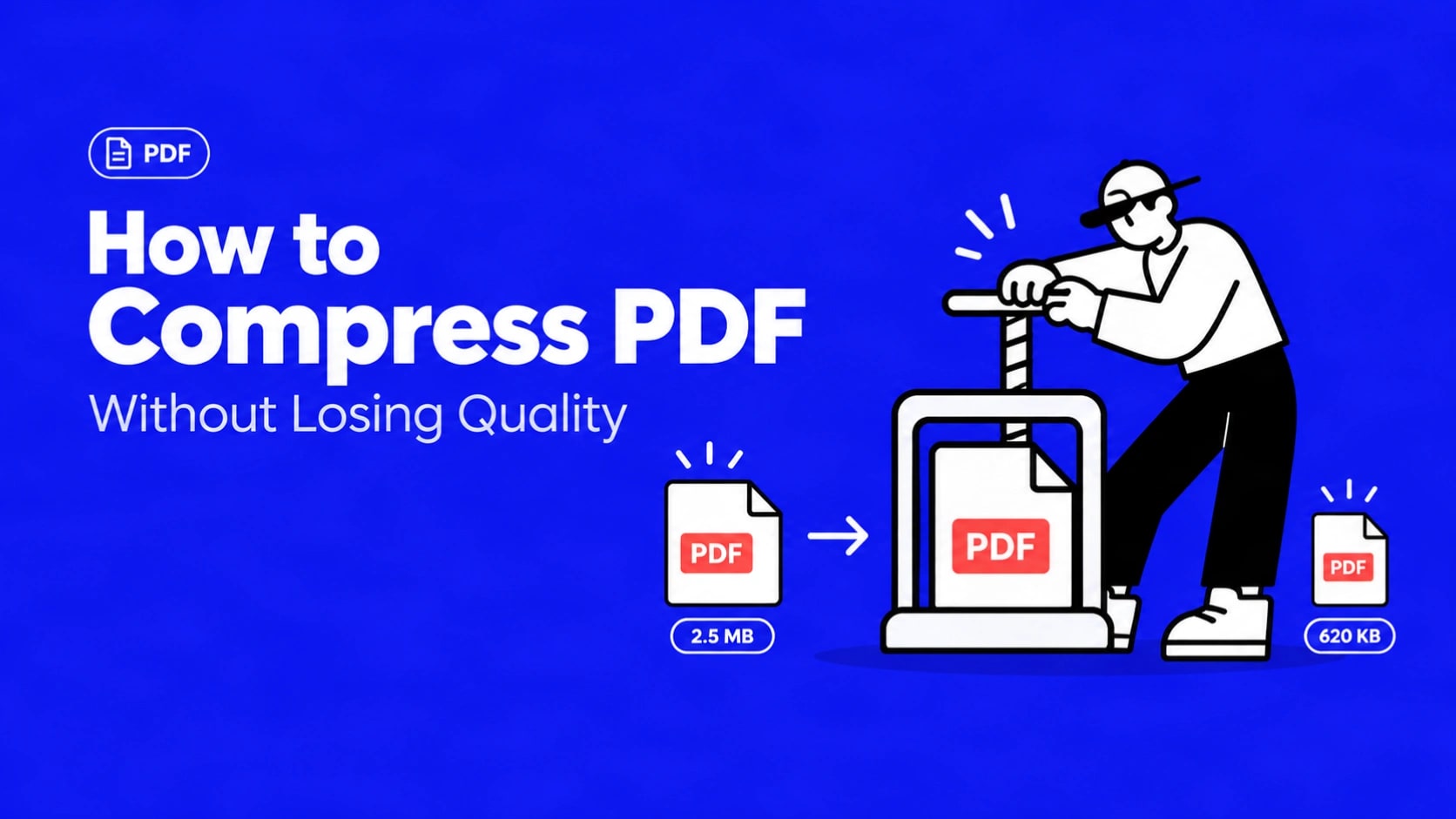
How to Compress a PDF Without Losing Quality
Large PDF files cause real problems: email rejection, slow uploads, storage limits, and failed form submissions. The good news is you can usually shrink a PDF significantly while keeping text crisp and images usable on screen.
This guide shows you exactly how to compress a PDF without losing quality for everyday use—email, web uploads, and sharing—using a free browser-based tool.
Most people can reduce image-heavy PDFs by 40–70% with medium (recommended) compression and still see no visible difference at normal viewing distance. Text remains vector-sharp because PDF text is not pixels.
Why PDFs Become Large
PDF size is driven mainly by embedded images, not by the number of pages. High-resolution photos, screenshots, and scanned pages stored at 300 DPI or higher take the most space. Extra metadata, unused objects, and unoptimized fonts add smaller amounts.
Text and vector graphics compress extremely well (often lossless). Scanned or photo-heavy documents need careful image downsampling to stay readable.
What “Without Losing Quality” Really Means
True lossless compression removes redundancy (metadata, duplicate objects, inefficient streams) with zero visual change. Larger savings come from controlled image downsampling and re-encoding.
For screen viewing and email, targeting roughly 150 DPI for color images is widely accepted as visually indistinguishable at normal zoom. Printing usually needs closer to 300 DPI. Aggressive settings (around 72 DPI) can make photos soft when zoomed or printed.
💡 Tip: Start with the lightest useful setting. Only increase compression if the file is still over your size limit.
How to Compress a PDF Without Losing Quality (Step by Step)
Use the free PDF Convex Compress PDF tool. It requires no account, adds no watermark, and supports files up to 100 MB.
1Open the tool
Go to https://pdfconvex.com/tools/compress-pdf.
2Upload your PDF
Select the file or drag and drop it. The tool accepts standard PDF (PDF 1.0–2.0) and can handle password-protected files with local decryption when needed.
3Choose compression level
Select Recommended Compression for the best balance of size and quality, or Extreme Compression when you need the smallest possible file.
4Compress and download
Click compress. When processing finishes, download the optimized PDF. Check the new file size and open a few pages at 100% zoom to confirm text and important images look good.
📝 Note: Processing happens client-side in the browser when possible, or with TLS 1.3 encryption and permanent deletion after processing. No signup is required and output is watermark-free.
Choosing the Right Compression Level
- Recommended — Best default for email, forms, and general sharing. Keeps text sharp and images usable on screen.
- Extreme — Use only when you must meet a strict size cap (for example under 1 MB or a portal limit). Expect more aggressive image reduction.
If the result is still too large, consider removing unneeded pages first, then compress again, or split the document.
Practical Tips for Better Results
- Compress images to a sensible resolution before creating the PDF when you control the source (Word, PowerPoint, design tools).
- For scanned documents, keep enough resolution so text stays readable (generally avoid going far below ~150 DPI for body text).
- Remove blank or irrelevant pages before compression—they add size with no value.
- After compression, always open the file and check critical pages at normal reading zoom.
Warning: Do not over-compress legal, archival, or print-ready master files. Keep an original high-quality copy and compress only the version you will share or upload.
Common Problems and Fixes
Upload fails or file is rejected
Confirm the PDF opens correctly and is under 100 MB. Unlock any password protection first.
Text looks soft after compression
This usually means the page was a scanned image rather than selectable text. Use a lighter setting or OCR the document before aggressive compression if searchability is needed.
File is still too large
Try Extreme compression, remove unnecessary pages, or split the PDF into smaller parts for separate uploads.
Download does not start
Check browser pop-up or download settings and try a different browser if needed. The tool works on desktop and mobile browsers.
Related PDF Convex Tools
After compressing, you may need to combine or organize files:
- Merge PDF — Combine multiple compressed files into one document.
These tools share the same free, no-account, watermark-free approach and 100 MB per-file limit.
Frequently Asked Questions
Can you compress a PDF without losing quality?
Yes, for most everyday uses. Lossless structural cleanup plus moderate image downsampling (around 150 DPI for screen) keeps text sharp and images looking the same at normal viewing distances. Extreme compression can soften photos.
How much can I reduce a PDF file size?
Image-heavy or scanned PDFs often shrink 40–70% (sometimes more) with recommended settings. Text-only PDFs usually see more modest gains (often 10–40%) because there is less redundant image data.
Is the PDF Convex Compress PDF tool free?
Yes. It is free with no signup, no watermarks, unlimited frequency within the stated limits, and a 100 MB maximum file size.
Will compression affect text quality?
Selectable text in a normal PDF is vector data and stays crisp under proper compression. Soft text usually indicates the original was a scanned image of a page.
Is it safe to compress sensitive PDFs online?
PDF Convex processes files client-side when possible or transfers them with TLS 1.3 encryption and deletes them after processing. For highly sensitive documents, evaluate whether any online tool meets your risk requirements; offline software remains an option.
Does it work on mobile?
Yes. The tool is responsive and works in modern mobile browsers on iPhone, Android, tablets, and desktops.
Conclusion
Compressing a PDF without noticeable quality loss is mainly about matching the compression level to how the file will be used. Start with Recommended compression on a free online tool, check the result at normal zoom, and only go higher if you still need a smaller size.
Open the PDF Convex Compress PDF tool, upload your file, choose Recommended, and download the smaller version. Keep your original if the document is important for print or long-term archiving.