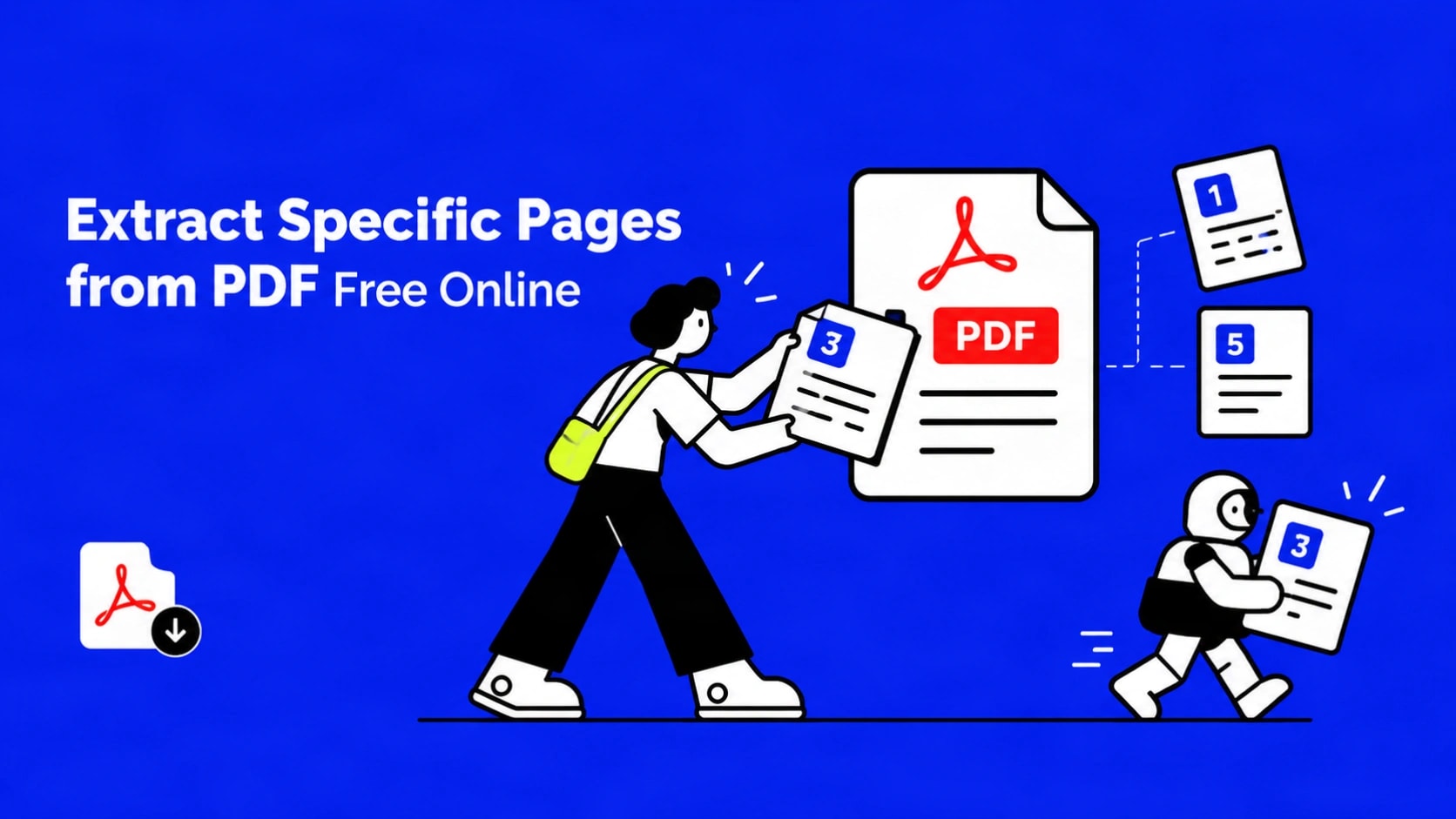
Extract Specific Pages from PDF Free Online
You have a long PDF and you only need a few pages. Maybe it is a chapter from a report, a signature page from a contract, or three forms from a scanned packet. Sending the whole file is messy and often unnecessary. Extracting the specific pages into a new PDF solves the problem cleanly.
This guide shows you exactly how to do it free online, without installing software or creating an account. You will end up with a new standalone PDF that contains only the pages you chose. The original document stays exactly as it was.
What Extracting Pages from a PDF Actually Does
A PDF is a structured container of individual pages. Extraction means the tool reads that structure, isolates the page objects you select, and rebuilds them into a fresh PDF. Fonts, images, layout, and text remain intact. The new file opens in any standard PDF viewer and behaves like any other PDF.
This is different from simply deleting pages. When you extract, you keep a clean copy of the selected pages while the source document continues to exist unchanged. That separation is useful when you need to share only part of a sensitive or lengthy file.
How to Extract Specific Pages from a PDF Free Online
The fastest free method that requires no install and no signup uses the Extract Pages tool on PDF Convex.
That is the complete process. No account is created, no email is requested, and no watermark is added to the output.
Understanding Page Selection Syntax
Most users need one of three patterns. The tool accepts all of them in a single field.
| What you type | What you get |
|---|---|
| 7 | Only page 7 |
| 4-9 | Pages 4 through 9 as one continuous PDF |
| 1, 3, 8-12 | Pages 1, 3, and 8 through 12 in that order |
You can mix single pages and ranges freely. The extracted pages keep their original order inside the new file and are renumbered starting from page 1 of the new document.
Quality, Original File Safety, and Practical Limits
The extraction process is designed to be lossless. Fonts stay embedded, vector graphics stay sharp, and images keep their original resolution. Text remains selectable and searchable when the source PDF already contained a text layer.
The original PDF is never modified. You always download a separate new file.
Current verified limits on the tool:
- Maximum upload size 100 MB
- Supports documents with 500 or more pages
- Unlimited extractions per day
- No account required
If your file is larger than 100 MB, compress it first with the free Compress PDF tool, or split the large document into smaller sections and then extract from the relevant section. Both companion tools are available on the same site and follow the same free no signup model.
Common Problems and How to Fix Them
Upload fails or the tool does not accept the file
Check that the file is a standard PDF and is under 100 MB. Try a different browser or clear the cache if the page appears stuck. Corrupted PDFs may need repair before extraction.
Password protected message
Unlock the file first with the dedicated Unlock PDF tool, then extract the pages you need.
Extracted pages look different or text is missing
This almost never happens with normal text or scanned PDFs. If it does, the source may contain unusual encoding or broken fonts. Re exporting the original document as a fresh PDF often resolves the issue.
Need the pages as images instead of a PDF
After extraction, convert the new PDF to JPG with the PDF to JPG tool if your workflow requires image files.
Related Workflows You May Need Next
Once you have the extracted pages, you often want one more step:
- Reduce file size for email with Compress PDF
- Combine several extracted sections with Merge PDF
- Reorder or delete leftover pages with Organize PDF or Remove Pages
- Make a scanned extract searchable with OCR PDF
All of these tools sit on the same free platform and use the same privacy approach: encrypted transfer and automatic deletion within 60 minutes.
Frequently Asked Questions
Does extracting pages change or delete the original PDF?
No. The original file remains completely unchanged on your device. You receive a new separate PDF.
Can I extract non consecutive pages?
Yes. Enter the page numbers separated by commas, for example 2, 7, 15. You can also mix ranges and single pages in one request.
Is the tool completely free?
Yes. There is no charge, no daily limit on the number of extractions, and no requirement to create an account.
Will the extracted pages keep the same quality?
Yes. The process preserves fonts, images, and layout without re compressing or rasterizing content.
What happens to my file after I extract the pages?
The uploaded file and the generated extract are protected by TLS encryption during transfer and are automatically deleted from the servers within 60 minutes.
Can I use this on my phone?
Yes. Open the tool page in any modern mobile browser, upload the PDF from your device storage, select the pages, and download the result.
Final Thoughts
Extracting specific pages from a PDF should be a quick, low friction task. With a free browser based tool you can select exactly the pages you need, download a clean new file, and keep the original intact. No software install, no account, and no quality trade off for ordinary documents.
Open the Extract Pages tool, upload your file, enter the pages, and download the result. That is all it takes.